Head swap in Photoshop: the manual steps, and when AI is faster
To head swap in Photoshop, open both photos as layers, align the new head with Auto-Align or Free Transform, mask it in with a soft brush, then match colour and blend the edges. It works, but hair and the neckline take most of the time. An AI head swap does the whole head in about a minute.
The short version
Photoshop can do any head swap you can imagine, because you control every pixel. The cost is time, and most of it goes into two places: the hair edge and the neck. For one hero image that is often fine. For a catalogue of dozens of frames on one approved model, it is the part that does not scale.
This guide walks through the manual route as Adobe and photo educators describe it, then shows where an AI head swap replaces those steps and where Photoshop is still the better tool.
Before you start
Pick two photos that already agree with each other. The two things that sink a manual swap are a different camera angle and different light. Photo educators also suggest matching exposure, white balance and colour before you open the files, and working from the camera originals rather than small exports (Digital Photography School).
The manual steps in Photoshop
Adobe's own guide to swapping faces in Photoshop gives two routes, a layer-mask method and an Object Selection method, plus a blending pass (Adobe). For a head swap, the steps look like this:
- Open both photos as layers. Put the shot you are keeping and the photo with the new head in one document. Name the layers so you know which is which.
- Isolate the new head. Use the Object Selection tool, or the Lasso tool with generous padding, and copy the head to its own layer. Include the hair you want to keep from the new head.
- Align it. Drop the head layer to about 50% opacity and use Free Transform (Ctrl or Cmd + T) to move, scale and rotate it until the eyes, nose and mouth line up. Auto-Align does this for you when the two photos are similar. Set opacity back to 100%.
- Mask it in. Add a layer mask and paint with a soft brush: black hides, white reveals. Build the edge up at 50 to 70% brush opacity rather than in one pass. Masking is reversible, so avoid the Eraser.
- Match the colour. Use Image › Adjustments › Match Color to bring the new skin tone close to the body.
- Match the softness. If one photo is sharper, use the Blur tool on the head so its detail matches the rest of the frame.
- Blend. Select both layers and use Auto-Blend Layers with Seamless Tones and Colors to even out the join.
Where the time goes
The steps above are quick to read. Two of them are not quick to do.
The hair edge. Hair is thousands of fine strands against a background that changed between the two photos. A soft mask leaves a halo; a hard mask leaves a helmet. Retouchers often end up painting strands back by hand, which is where a head swap becomes an afternoon.
The neck and collar. The new head arrives with its own skin tone and its own shadow under the jaw. On a fashion shot, the join sits right above the collar, which is exactly where a buyer looks next. Match Color gets close; the last part is usually dodge, burn and patience.
Generative Fill can help with both. Adobe describes it as a way to add or remove content in a selection from a text prompt, optionally guided by a reference image in the Photoshop app (Adobe). Retouchers use it to patch a hair edge or rebuild a bit of neck after the manual swap. Adobe says most standard generative features use 1 generative credit per generation, and Creative Cloud Pro and Firefly plans have unlimited standard generations (Adobe Help). Check every generated patch against the approved model, because generated pixels are new pixels.
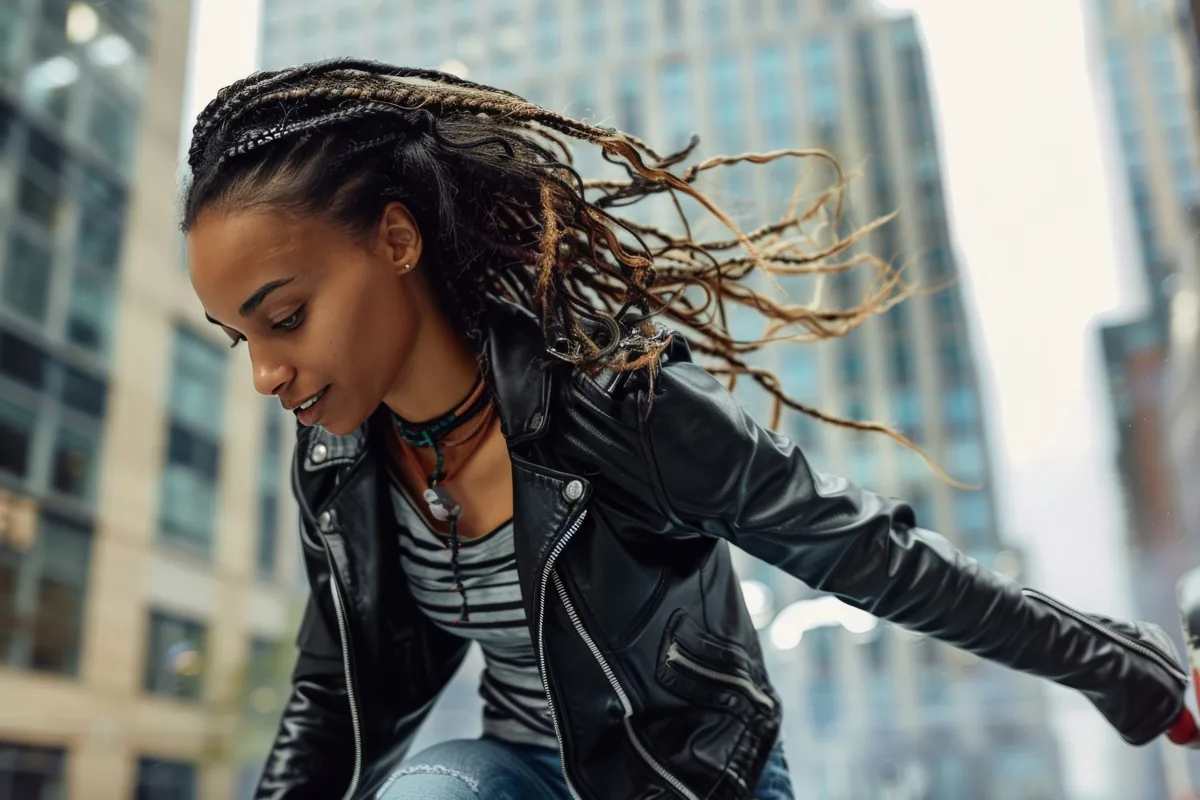
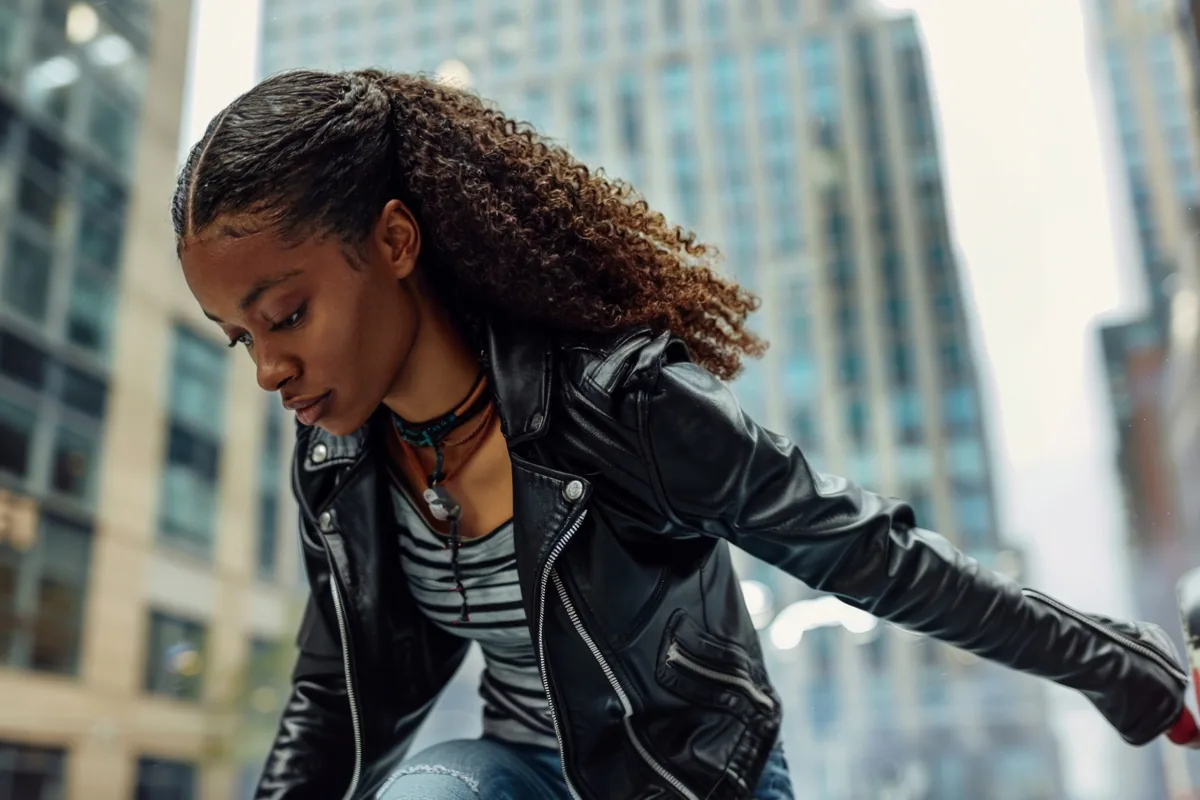
Leather jacket on a city street. The jacket, the street and the light stay as shot; the head and hair are new.
The same job with an AI head swap
With Headloom you upload the shot you are keeping and a head photo of the approved model. Headloom finds the head, masks the hair and neckline, builds the new head with its hair, and matches skin and light. It does not keep the original hair. The hair is rebuilt to belong to the new head. The garment, pose, hands, background and light stay exactly as shot, in high resolution, with no pixel shift. It takes about a minute.
| Step | Photoshop by hand | Headloom |
|---|---|---|
| Line up the head | Free Transform or Auto-Align | Automatic |
| Hair edge | Mask and paint strands | Rebuilt with the new head |
| Skin at the neck | Match Color, dodge and burn | Matched automatically |
| Garment | Untouched if you masked carefully | Untouched |
| Many frames, one model | Repeat every step per frame | Same head photo for every swap |
| Control | Every pixel | One result per swap; try a different head photo if needed |
When Photoshop is still the better tool
- You need pixel-level control over the final image.
- There is more than one person in the frame. Headloom works on one person per photo.
- The job is a composite, not a head replacement: new background, new props, a restaged scene.
- You want to finish an AI result. Many retouchers run the swap first and polish the last details in Photoshop.
When an AI head swap is the better tool
- The frame is approved and only the model should change.
- You need the same approved model across many garments. The guide on how to change the model in product photos covers that workflow.
- The hair has to change with the face. The AI head swap with hair guide explains what that edit involves.
The same whole-head edit is behind the face swap page.
Consent
Whatever tool you use, only swap in people who have agreed to it, and keep a model release on file. Headloom asks you to confirm that before every swap and refuses public figures. The rules are on the responsible use page.
Sources, read on 21 October 2026: Adobe, face swap in Photoshop; Adobe, Generative Fill; Adobe Help, generative credits; Digital Photography School, head swap in Photoshop.
Questions
What is the fastest way to head swap in Photoshop?
Open both photos as layers, align them with Auto-Align, mask the new head in with a soft brush on a layer mask, then use Match Color and Auto-Blend Layers to even out skin and tone.
Can Generative Fill do a head swap?
Generative Fill adds or removes content from a selection using a text prompt, and in the Photoshop app it can take a reference image. It is useful for patching hair edges and the neck after a manual swap. Check the result against your approved model.
Do I need generative credits?
Adobe says most standard generative features, such as Generative Fill, use 1 credit per generation, and Creative Cloud Pro plans have unlimited standard generations.
Why does a Photoshop head swap look fake?
Usually the hairline, the skin tone at the neck, or a mismatch in light and blur. Match Color and the Blur tool help; hair is the hardest part to fix by hand.
When is Photoshop the better choice?
When you need pixel-level control, more than one person in the frame, or a composite that is not a simple head replacement.
What does Headloom do differently?
Headloom replaces the whole head, hair rebuilt, in about a minute, and leaves the garment, pose, hands, background and light as shot. It does not keep the original hair.