Replace a face in a photo with AI: a guide for product photos
To replace a face in a photo with AI, upload the photo you want to keep and a clear photo of the approved face, and the tool puts the new face on the person in the shot. For product photos, pick a tool that rebuilds the hair with the face and leaves the garment, pose and light exactly as shot.
Three ways AI replaces a face
Search for how to replace a face in a photo and you get three kinds of tool. All of them get called a face swap, but they are not the same edit, and on a product photo the difference shows.
- Face-only swap. The new face is placed inside the head that was already there. The hair, the hairline and the head shape stay from the original model. Quick, and fine for a casual edit. On a catalogue shot it often looks stuck on, because the new face and the old hair don't belong together.
- Whole-head swap. The face, the hairline and the hair change together, and the skin is matched at the neck. This is what Headloom does on its face swap and head swap pages alike: same edit, two names.
- Generative fill. A selection is filled with new pixels from a text prompt, as in Photoshop's Generative Fill (Adobe). Good for patching. It generates a face rather than placing a specific approved person, so it is a different job from a face swap.
For fashion and product images, the second kind is usually the one you want. The garment is what you are selling; the model's face and hair should change as one, and nothing below the collar should move.
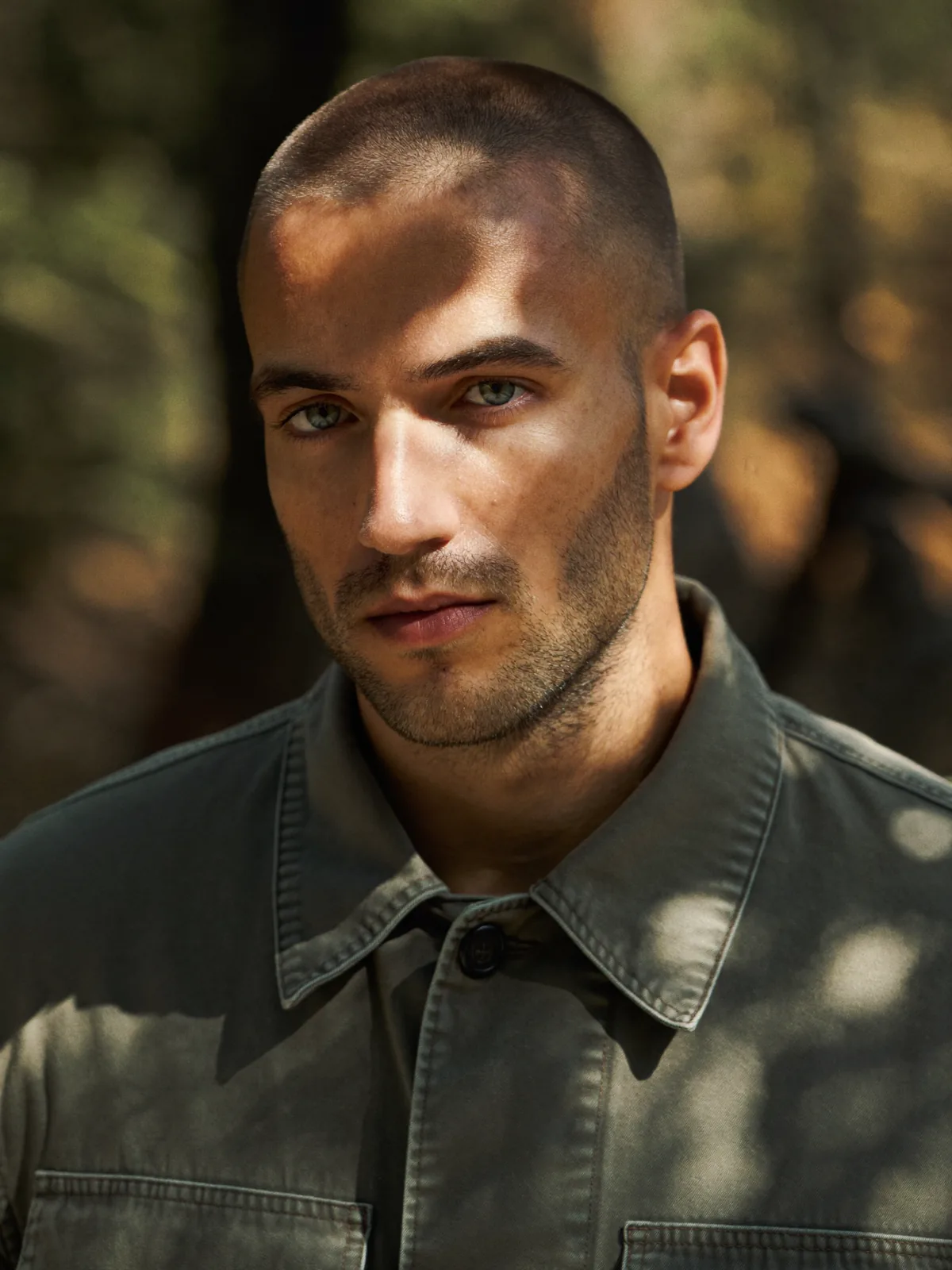
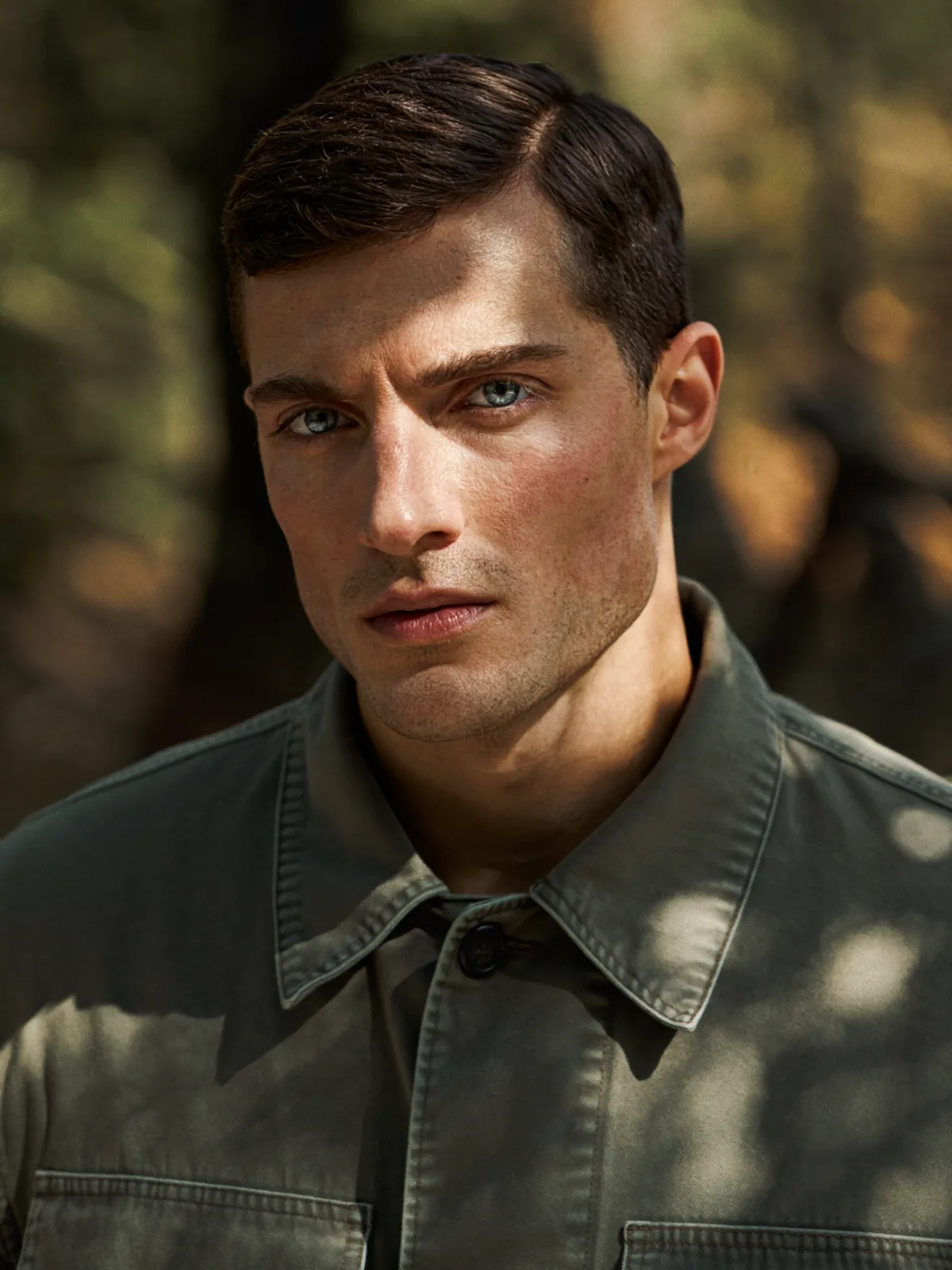
Olive shirt in dappled forest light. The shirt, the light and the background stay as shot. The face and hair are new.
Why product teams replace a face
The reasons repeat across catalogue teams:
- The model is no longer available, or their usage rights ran out, and the photos still sell the product. See model usage rights expired.
- A different face for each market, from one shoot. See localize model photos per market.
- One approved face across the range, when garments were shot on different days. See keep one AI model face consistent across a catalogue.
- A small change, not a reshoot. The set, the light and the garment were right; only the person needs to change.
How to replace a face on Headloom
- Upload the photo to change. The finished shot, with one model in it. The garment, pose, hands, background and light in this photo are the parts that stay.
- Upload the face to use. A clear, front-facing photo of the approved model, both eyes visible, with the hair styled the way it should look.
- Download the result. The same shot with the new face, the hair rebuilt to match. About a minute, including a safety check.
There is no mask to paint and no prompt to write. If you would rather do it by hand, head swap in Photoshop walks through the manual steps.

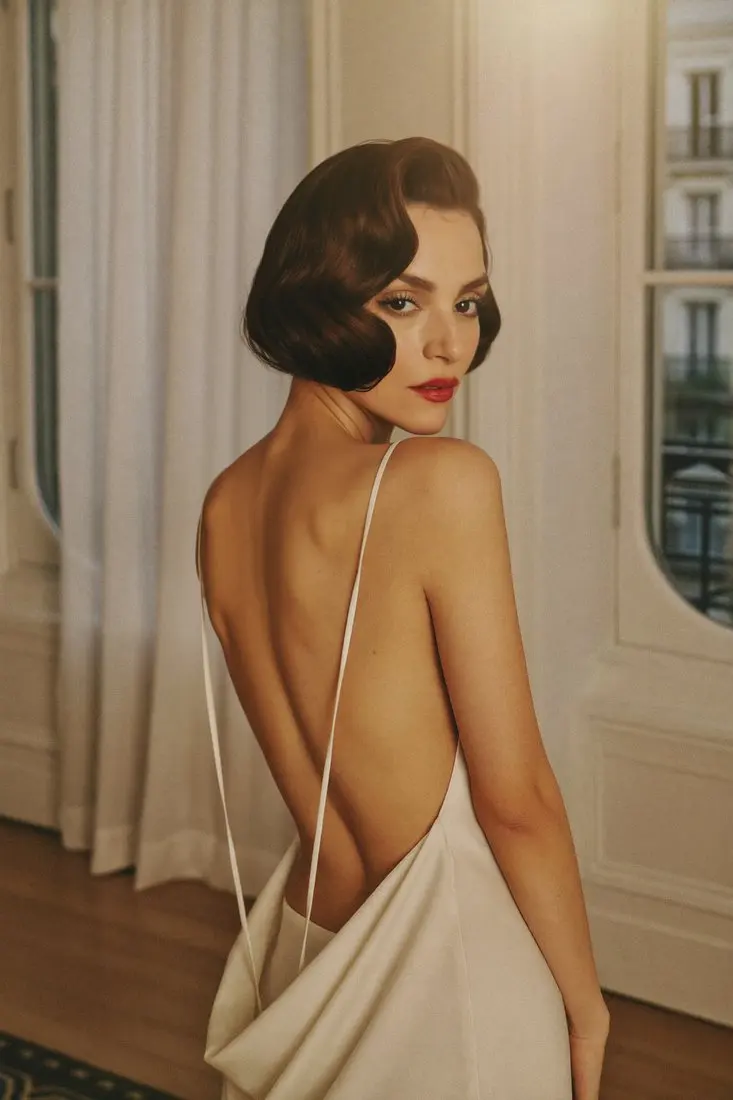
White backless dress by a window. The dress and the window light stay.
What to check before it goes on a product page
Shoppers zoom. Check the same places a careful buyer looks:
| Check | What good looks like |
|---|---|
| Hairline | No hard edge between hair and forehead |
| Neck and collar | One skin tone from jaw to collar, no seam |
| Garment | Print, buttons, seams and fit exactly as photographed |
| Light | Shadows on the face fall the same way as on the body |
| Framing | Same crop and size as the original, with no pixel shift |
If one of these is off, the usual fix is a better face photo: front-facing, similar angle and light, nothing covering the face. Hats, hands over the face and steep angles are the common reasons for a second try.
Consent, releases and labels
Only replace a face with someone who has agreed to it, and keep a model release for anyone whose face you use. Headloom asks you to confirm permission from the people in both photos before every swap, and refuses public figures. Marketplaces and ad platforms have their own rules on AI-edited images; check them before you list. This is general information, not legal advice.
Photos are used for your swap only, deleted within 24 hours, and never used to train AI models. The full rules are on the responsible use page.
What the results are based on
22,000+ images generated. Results come back in high resolution, with no pixel shift. Louis Philippe uses Headloom for its shirt catalogue, with one approved face across every shirt.
Questions
How do I replace a face in a photo with AI?
Upload the photo you want to keep and a clear photo of the face to use. On Headloom the face is replaced and the hair rebuilt to match, in about a minute.
Does replacing the face change the hair?
On Headloom, yes. The face and hair are rebuilt together, so the new face does not sit inside the old haircut. It does not keep the original hair.
Will the clothes change?
No. The garment, pose, hands, background and light stay exactly as shot, in high resolution, with no pixel shift.
Can I use any face I find online?
No. Only use faces of people who have agreed to it, such as a model who signed a release. Public figures are refused.
Do marketplaces allow AI-edited model photos?
Rules differ by marketplace and ad platform, and they change. Check each platform's own policy before you list. This is general information, not legal advice.
Can I replace a face in a video?
Not on Headloom. It works on photos only.